🎨
Design Tools
Blender
Export from Blender directly to Fenicher
Live
Setup:5 minutes
Difficulty:Easy
Code:Snippet provided
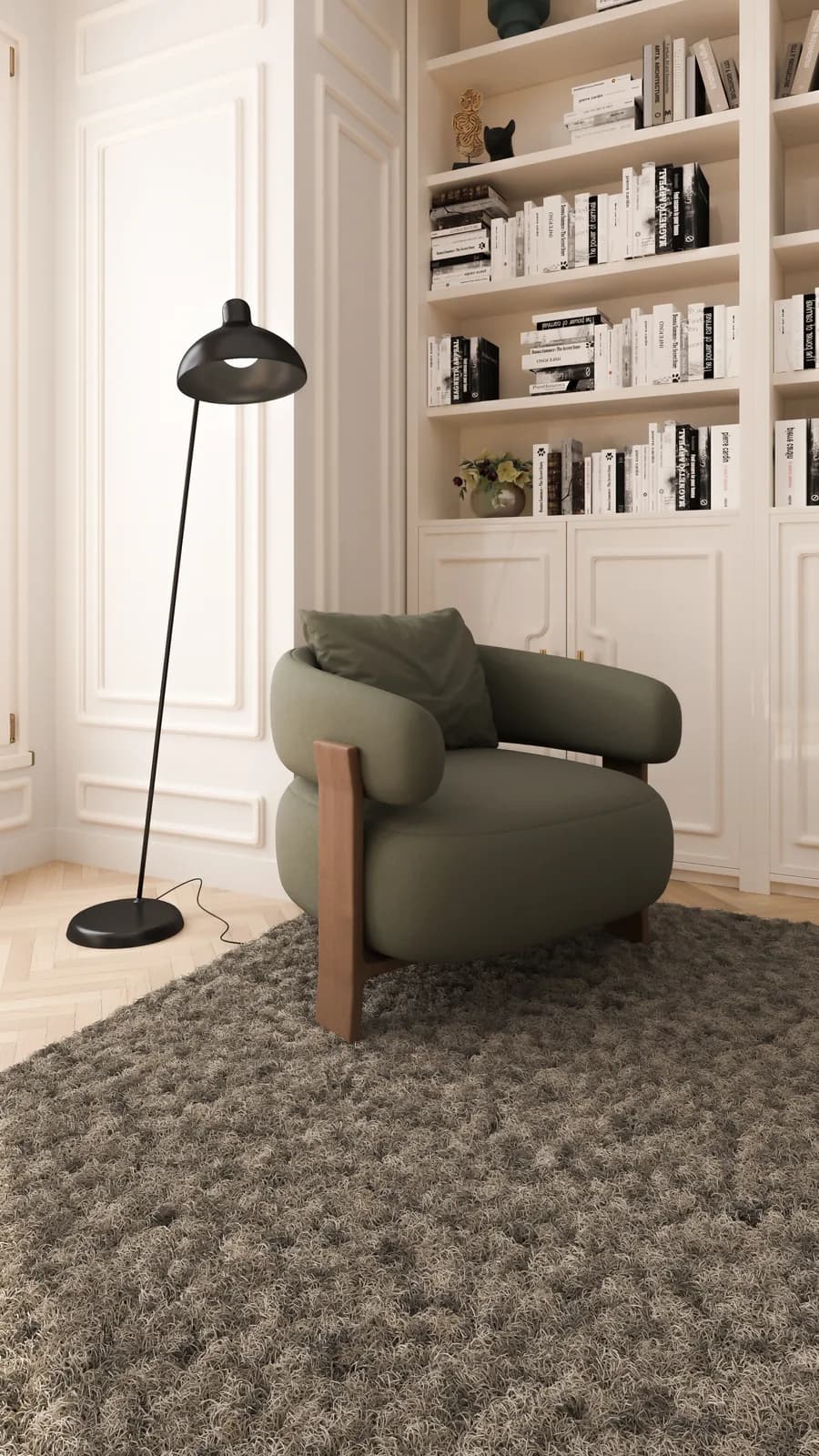
What's included
Your products. Blender-ready.
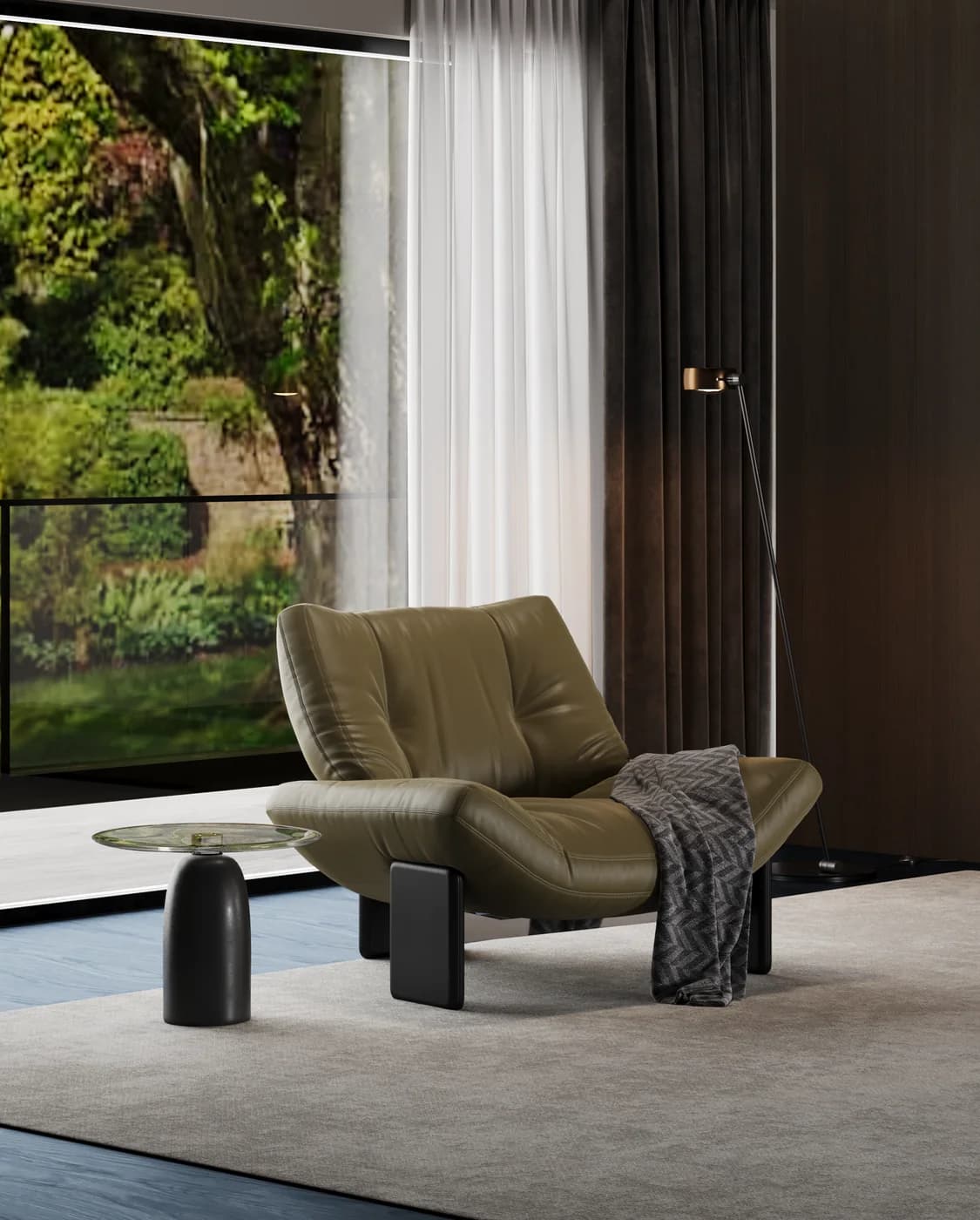
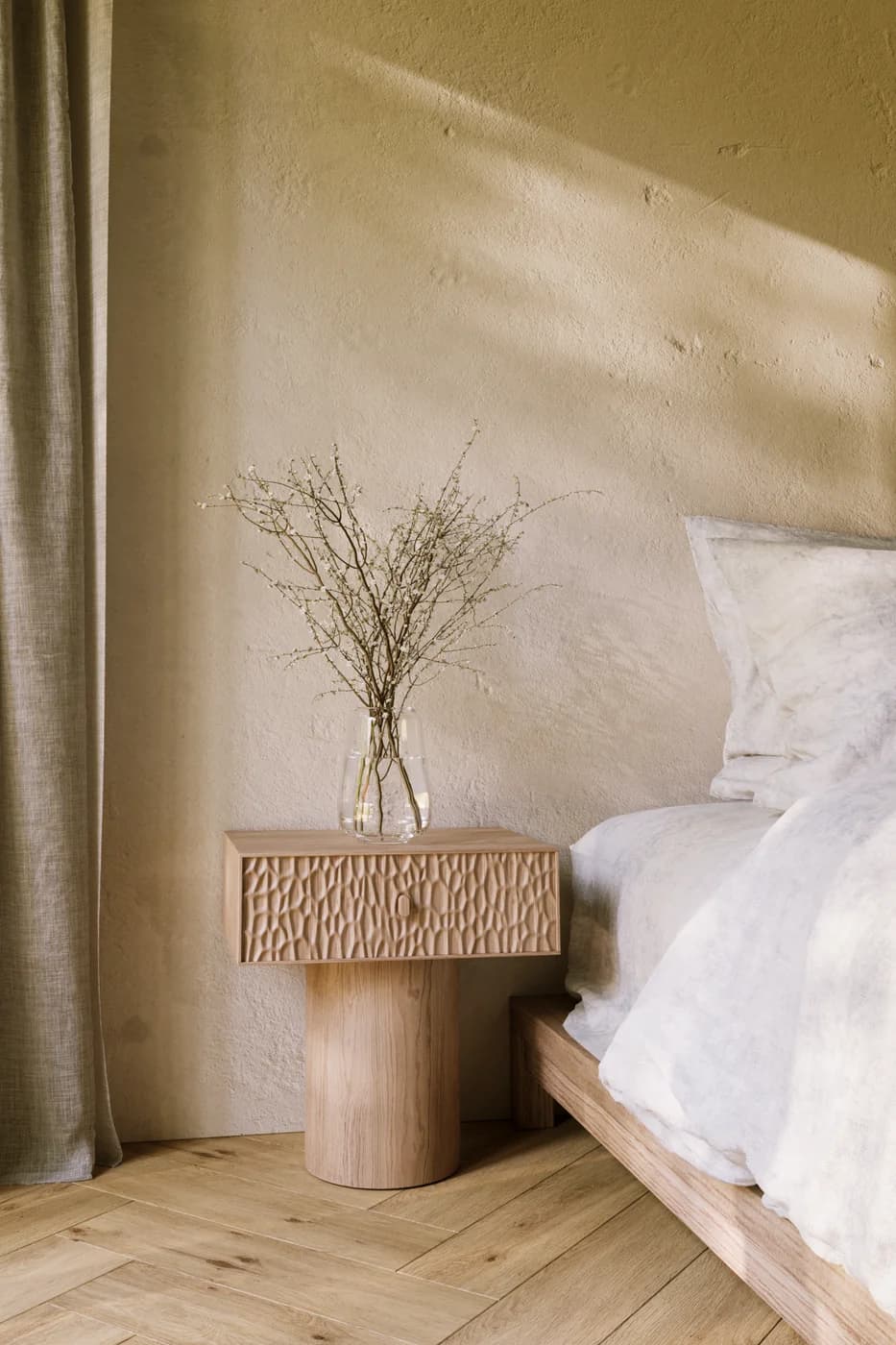
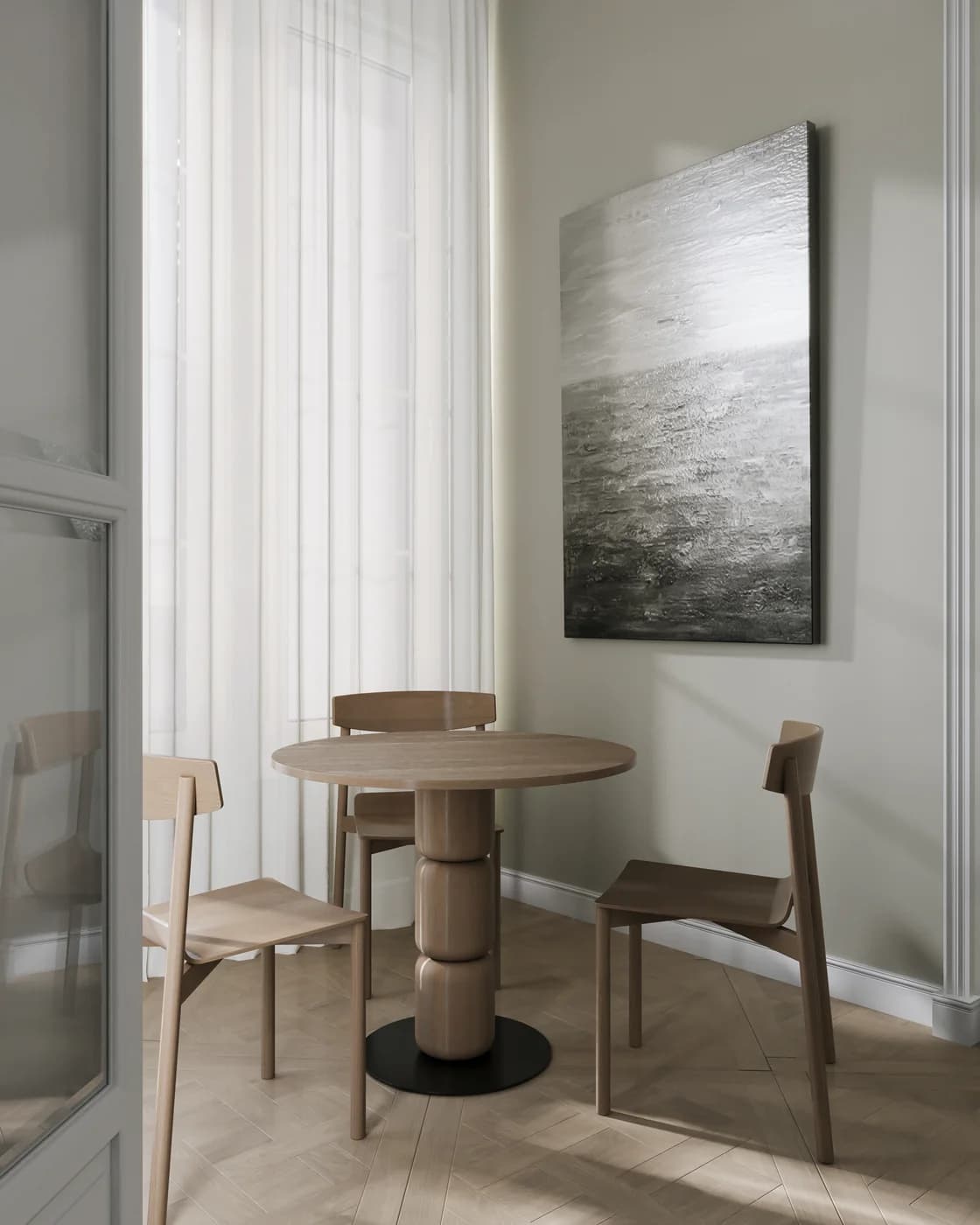
Preserve UV maps and mesh precision
STEP file upload for factory handover
Visual preview
Here's how it looks inside Blender.
Setup
Live in 5 minutes.
4 steps · Easy
1
Finalise your model in Blender
Apply all transforms (Ctrl+A → All Transforms). Ensure materials use Principled BSDF for accurate PBR export.
2
Export as GLB
File → Export → glTF 2.0 (.glb/.gltf). Settings: Format = GLB, Include = Selected Objects, Geometry = Apply Modifiers.
# Blender Python export (optional automation)
import bpy
bpy.ops.export_scene.gltf(
    filepath="/path/to/model.glb",
    export_format='GLB',
    export_apply=True,
    export_materials='EXPORT'
)
3
Upload to Fenicher
In your Fenicher workspace → Assets → Upload → drag the .glb file. Fenicher optimises it automatically for web and AR.
4
Share
Once processed, click Share → Copy Viewer Link. Your client can view it in full 3D and AR from any device.
Best for
Who uses Blender with Fenicher?
01
3D artists delivering to furniture brands
02
Retainer artists uploading monthly deliverables
03
In-house design teams
Also in Design Tools
Other integrations you might want
Connect Fenicher to Blender.
Contact sales to get started. Setup in 5 minutes.